Projects and Presets
Create a project from a preset, read the Dashboard, and find artifacts with project search and catalog filters.
Choose how to create a project
Sign in as an instance administrator to create a project. Choose Create from scratch to configure the project yourself or Create from preset to start with a configuration suited to your product. Create a project from scratch
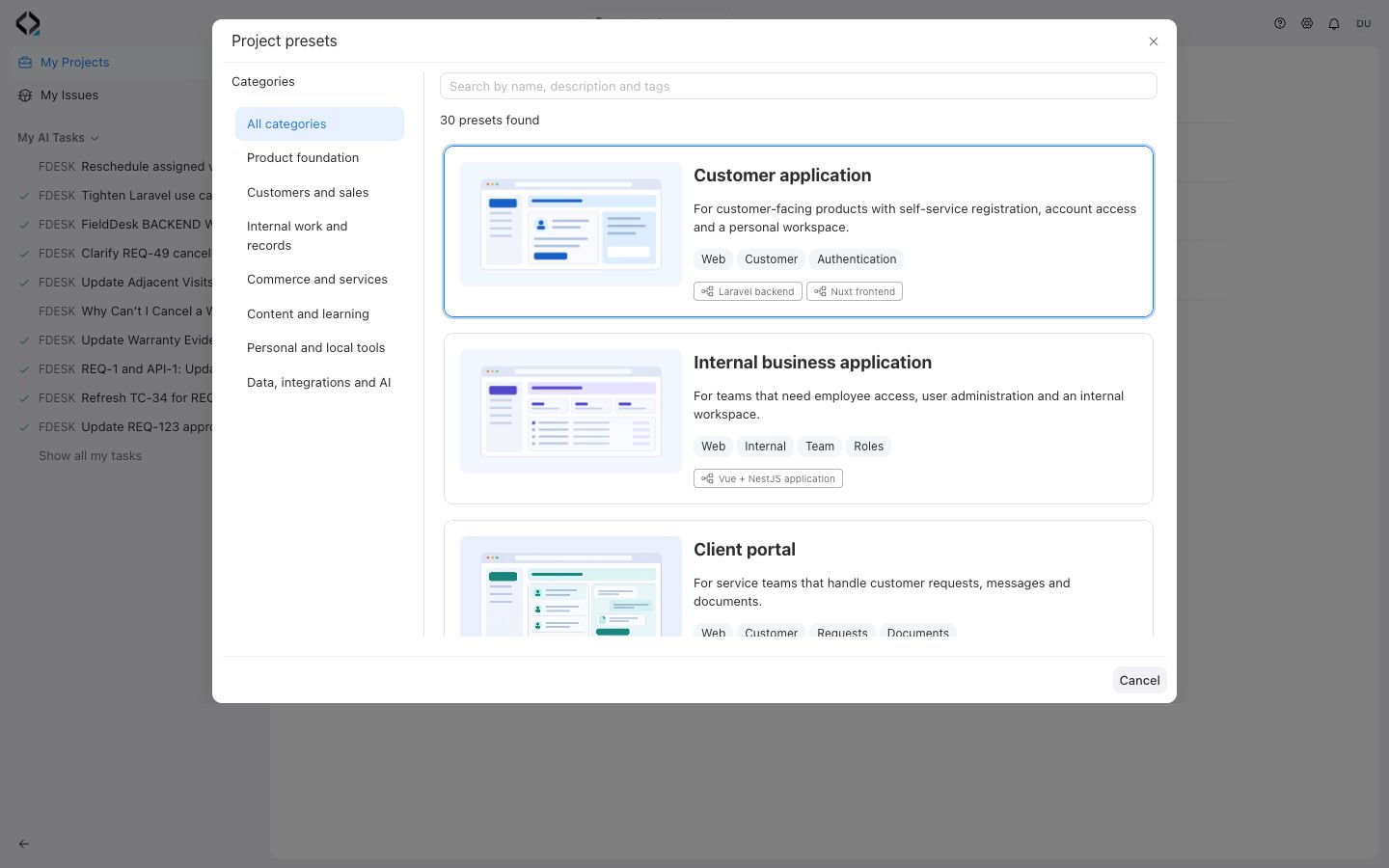
- In My Projects, select Create project → Create from preset.
- In Project presets, use search, categories, platform, or tags to find a preset. Open it and check the subsystems, technologies, product roles, and modules it includes. Some presets also provide requirements and specifications.
- Choose Next, enter a unique Short Code and a Name, then select Save. Open the new project and check the selected branch in the header.
Orient yourself in the project
Use the Dashboard to see the project's subsystems and activity across specifications, quality assurance, and implementation. Open the relevant catalog from the project navigation to inspect individual artifacts and their status.
Before opening an artifact someone shared, check the project and branch in the header. Use the artifact key and branch together so you and your teammate open the same working version.
Find and filter artifacts
- Open Search or Ask in the project header, or press Ctrl+K on Windows or Linux or ⌘K on macOS.
- Search by name or key. Use the artifact type filters to narrow the results. Open a result and confirm its key and status in the detail view.
- To explore a specific collection, open a catalog such as Specifications → Requirements. Use its search and filters to narrow by criteria such as module, type, or status. Clear the filters if a known artifact is missing from the results.