Data Entities and ERD
Model the data behind a requirement, add attributes and entity references, and inspect the Entity Relationship Diagram.
Define the data the feature needs
In Specifications → Data Entities, open the entity that describes the information used by a requirement, or create one from the add menu. Use its Description to explain what it represents. To define fields, choose an entity type that supports attributes and work in an editable Draft.
Add attributes and a reference
- On General, find Attributes and choose + → Attribute.
- For each field, set its Ident, Name, and Type. Describe its meaning and any validation rules, then save.
- To reference another entity, choose Entity as the attribute type and select the target under Reference entity. Create the target first if it is missing from the current branch.
Inspect the relationship in the diagram
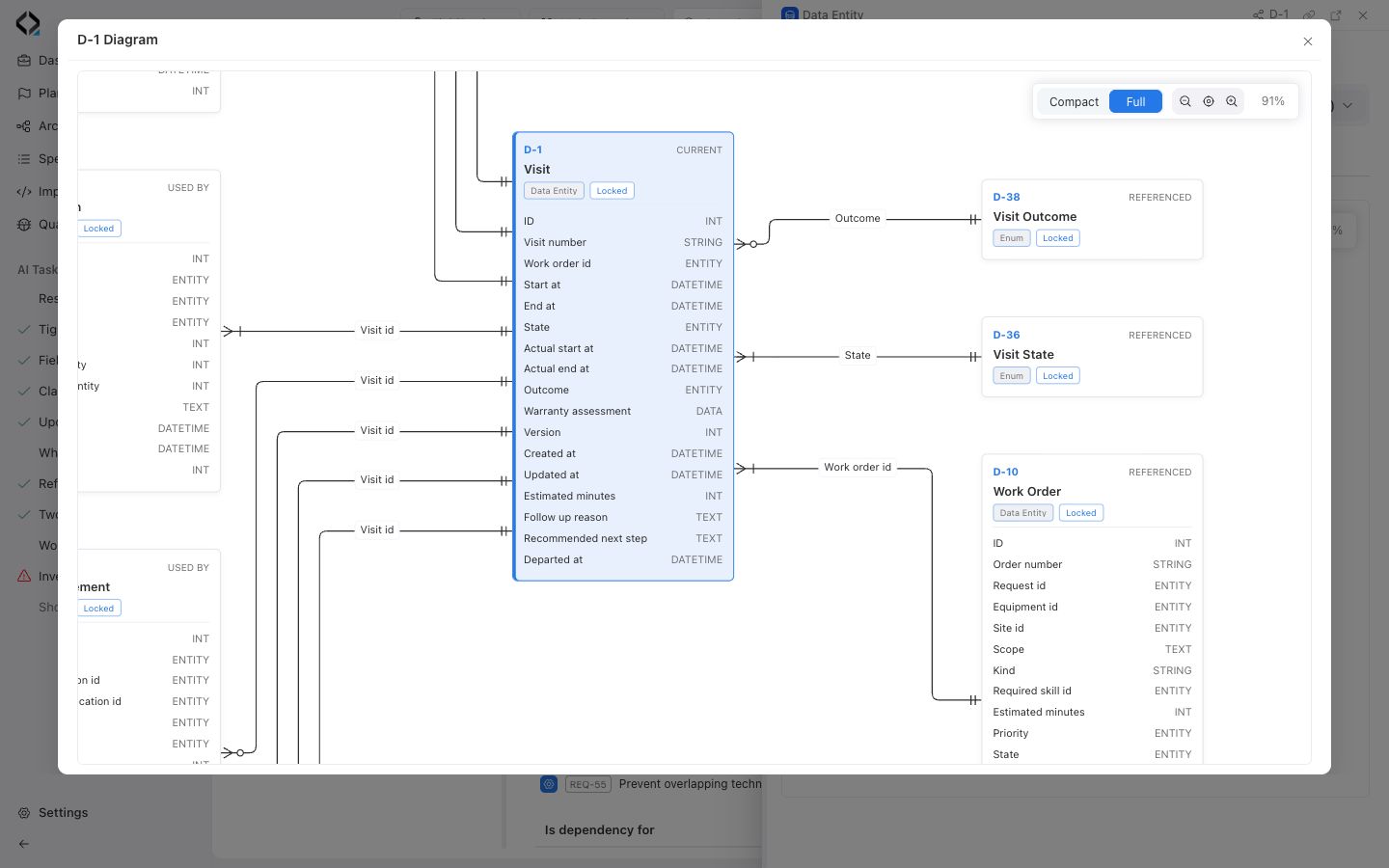
Open the Diagram tab. Compact shows the connected entities. Switch to Full to see the attributes behind the connections. Follow the line from the reference field to its target. If you cannot see the connection, check the saved field type and target in the selected branch.