Quickstart
Set up a project, describe your first feature to AI Analyst, and review and apply the proposed specifications.
What you'll build
Pick one feature from your product and describe it in plain language. AI Analyst will prepare a requirement and a linked Data Entity for you to review and apply.
Before you start
Creating a project in Reqode Cloud requires an instance administrator. You also need permission to manage subsystems and specifications. If you already have an editable project, open it and select the branch where you want to add the feature. Request a Cloud instance
Create a project
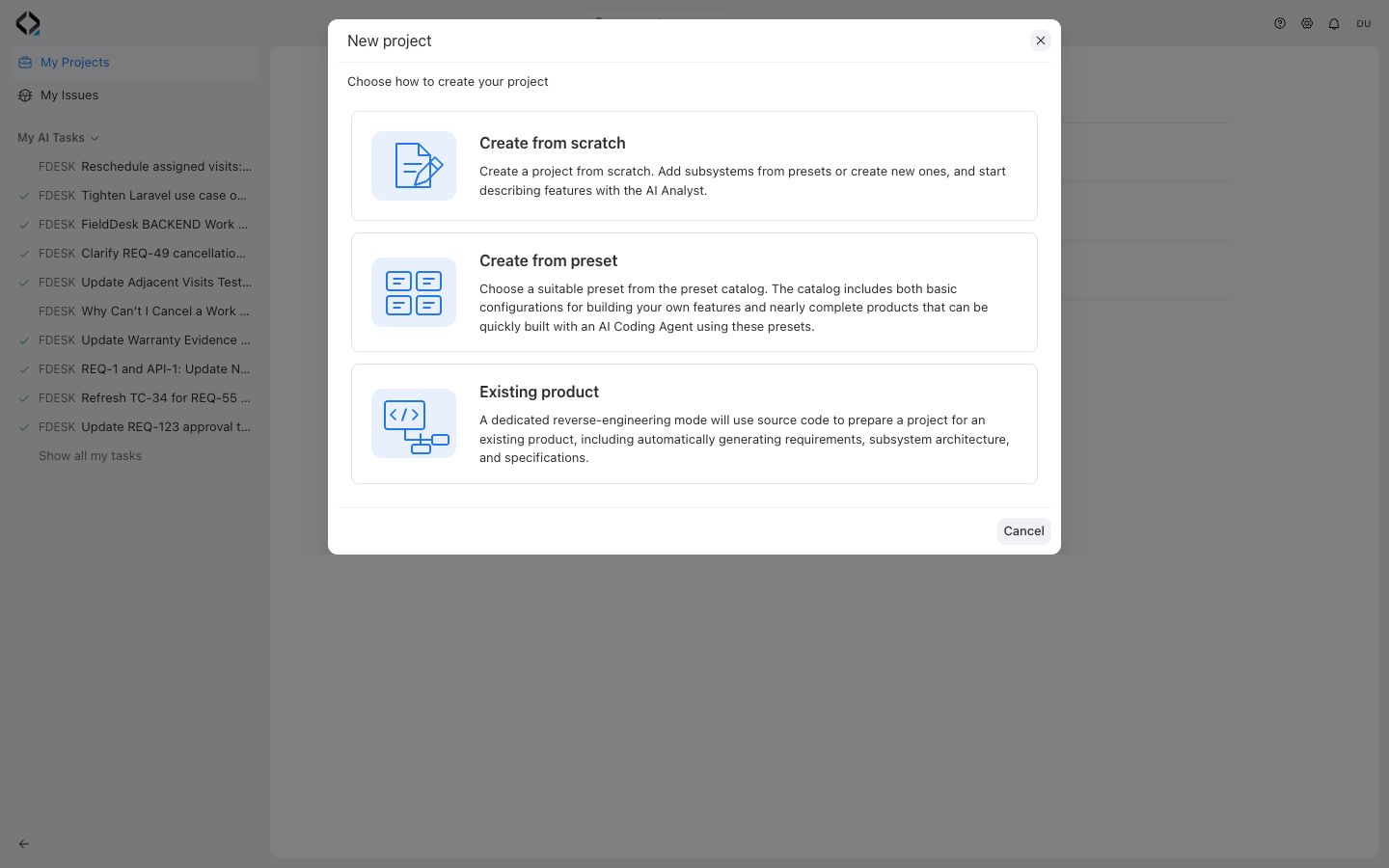
- On My Projects, choose Create project, then Create from scratch.
- Enter a unique Short Code and a Name for your project. Select Save.
- Open your new project and check that Main Branch is selected in the project header.
Choose a subsystem
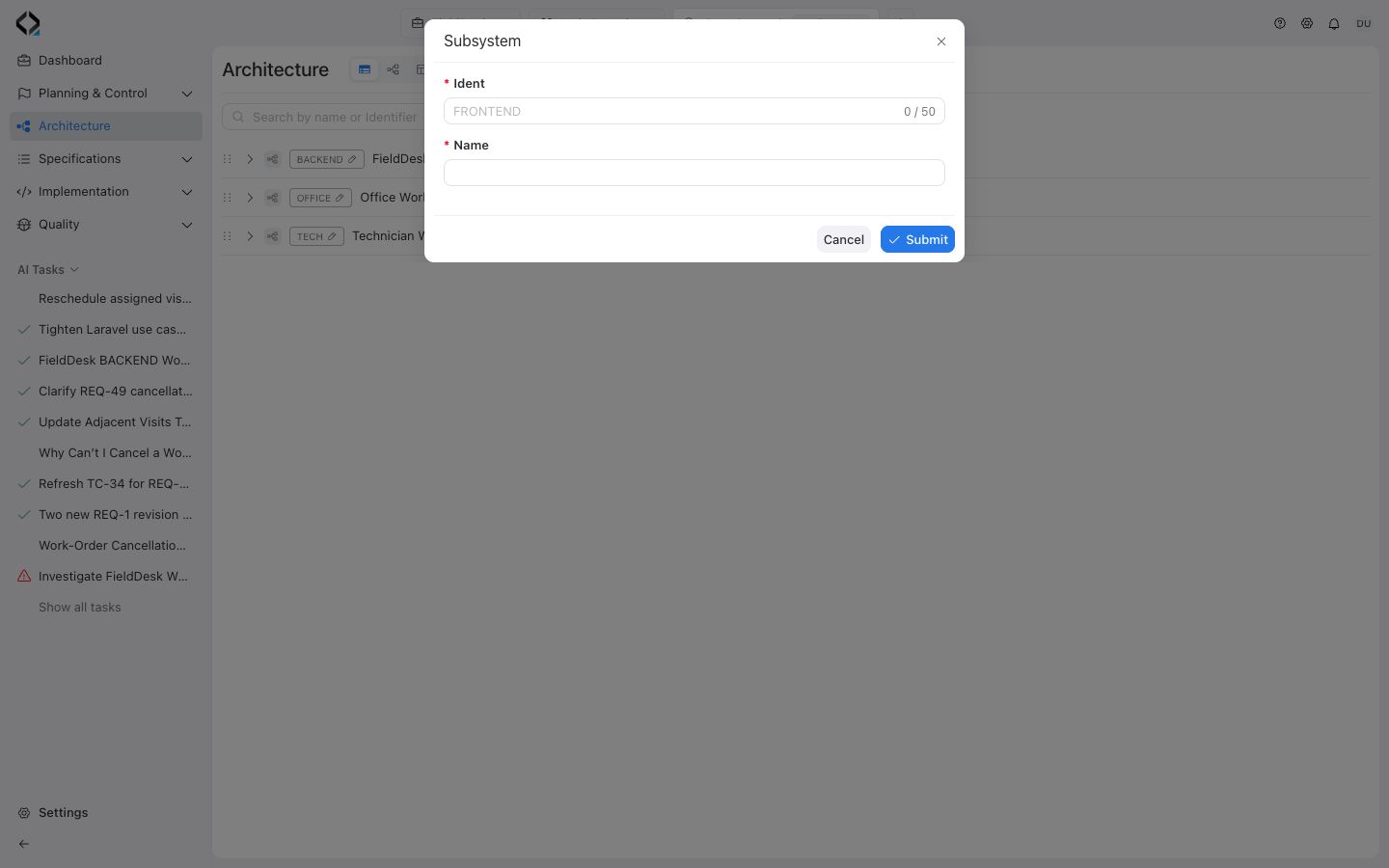
Use the subsystem responsible for the feature. To add one to a new project, open Architecture → + → Add Blank Subsystem. Enter its Ident and Name, then select Submit.
Prepare your first specifications with AI Analyst
- On the branch where you want to add the feature, create an AI Analyst task. Describe the feature in your own words. For example, “Let technicians request a new time for an assigned visit. A dispatcher must approve the request before the visit time changes.” Select Start.
- Answer any questions about the behavior or scope. Select Proceed when it appears to prepare the proposal.
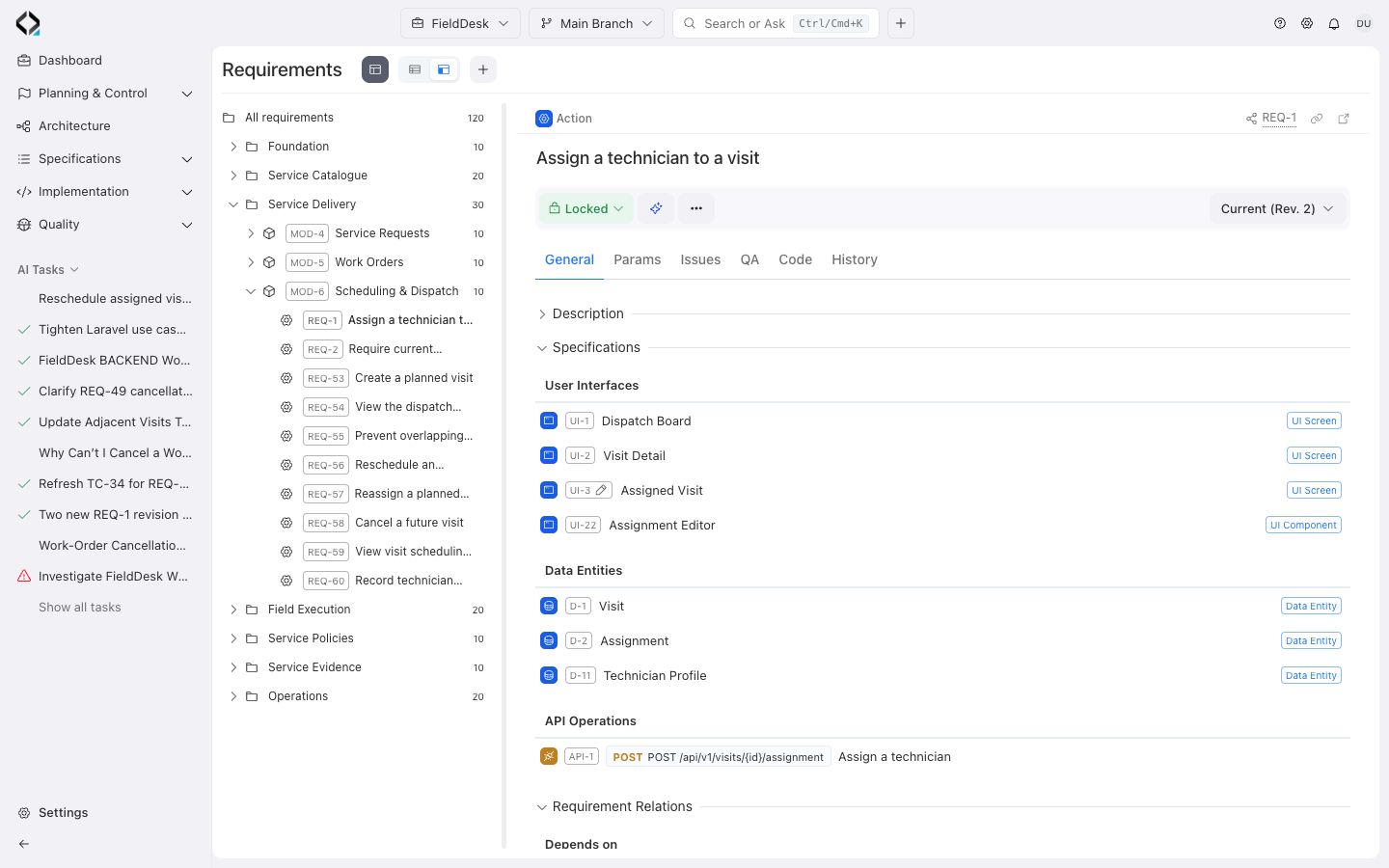
- Review the proposed requirement, its acceptance criteria, and the linked Data Entity. If AI Analyst proposes a new module, review where the requirement will go. Edit or disable individual proposals as needed.
- Select Apply to add the approved specifications to your project. Open the requirement and follow the Data Entity link under Specifications.
For direct editing, see Manage Requirements and Link Specifications.