Review and Apply AI Analyst Proposals
Give AI Analyst a scoped feature, review the proposed specifications and their diffs, and apply only the items your team has accepted.
Start with a feature or change
Open the project and branch where you want to work and create an AI Analyst task. To refine an existing requirement, you can start from its AI Analyst action. Add the keys of any related artifacts you want the assistant to consider.
Describe what the software should do, who will use it, and any rules it needs to follow. AI Analyst uses your request and the available project context to work out which specifications to create or update.
Select Start and answer any questions about the behavior or scope. When Proceed appears, select it to prepare the proposal. If the assistant is unavailable, check your project access and whether AI Analyst is enabled.
Review the proposal item by item
- Open the task's result and select each proposed requirement, entity, interface, or operation that belongs to the feature. Read its content in context. For an update, use Diff to inspect the proposed changes against the existing specification.
- Edit details that need correction. Disable items beyond the agreed scope or items whose prerequisites you have also excluded. Check that the selected data, screen, API, and requirement links still fit together.
- Wait for your review edits to save. If the source artifacts changed while the proposal was being prepared, review the conflict and refresh the proposal before applying.
Apply and verify the selected changes
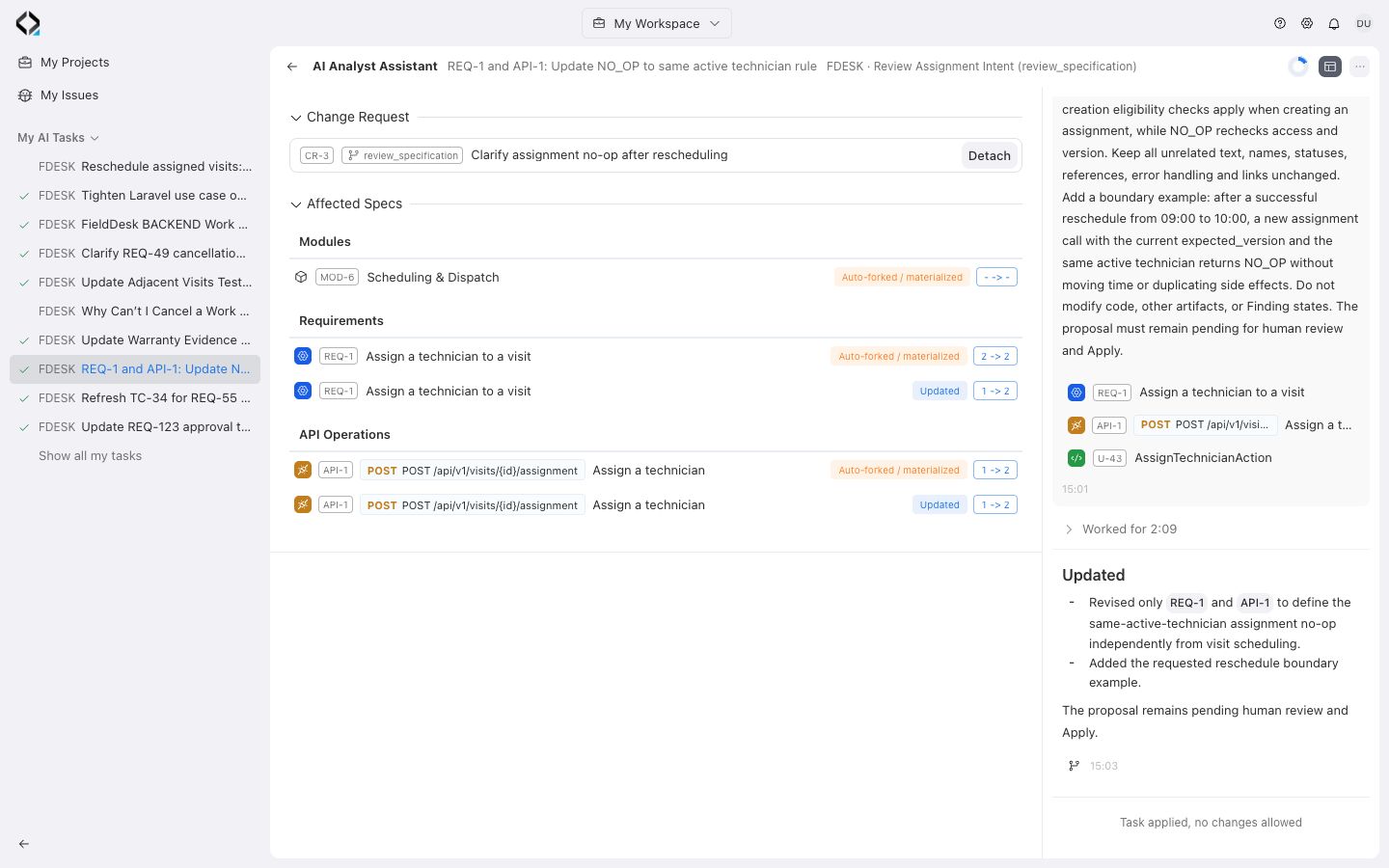
- Check the destination branch before choosing Apply. A linked Change Request determines the destination. For an unlinked task started in Main Branch, use Apply in… when available to choose another branch.
- In the application summary, open the revisions listed under Affected Specs and check that they match the changes you approved.
- Open the requirement's Specifications block and verify any new or updated links. Share the requirement key and branch with the team so they can review the same specification set.