User Interfaces and Wireframes
Describe a screen's behavior, attach or draw a wireframe, and link the screen to its requirement.
Describe the interface
In Specifications → User Interfaces, open an existing interface or choose Create User Interface. For a new interface, enter a Name, choose a Location in the relevant UI Surface, and select a Type.
If you need a surface or type, open the owning subsystem in Architecture and use its UI tab to create a UI Surface and assign a type under UI Types.
Record the behavior in Description. Include what users see and what they can do.
| State | What to describe |
|---|---|
| Initial | What appears when the interface opens and which actions are available. |
| Success | What changes after the action completes and how the interface confirms it. |
| Error | What the interface tells the user and how they can recover. |
Add the wireframe to the interface
- On General in the editable interface, find Wireframes and choose Add Wireframe.
- Choose Create Wireframe to draw in the built-in editor, or Upload to attach an existing design.
- Name the wireframes for the states they show. Use the collection actions to set the main view as Primary.
In Relations, record transitions to other screens and which components this interface contains. Open the Diagram tab to inspect those relationships. Preview also shows primary wireframes where available.
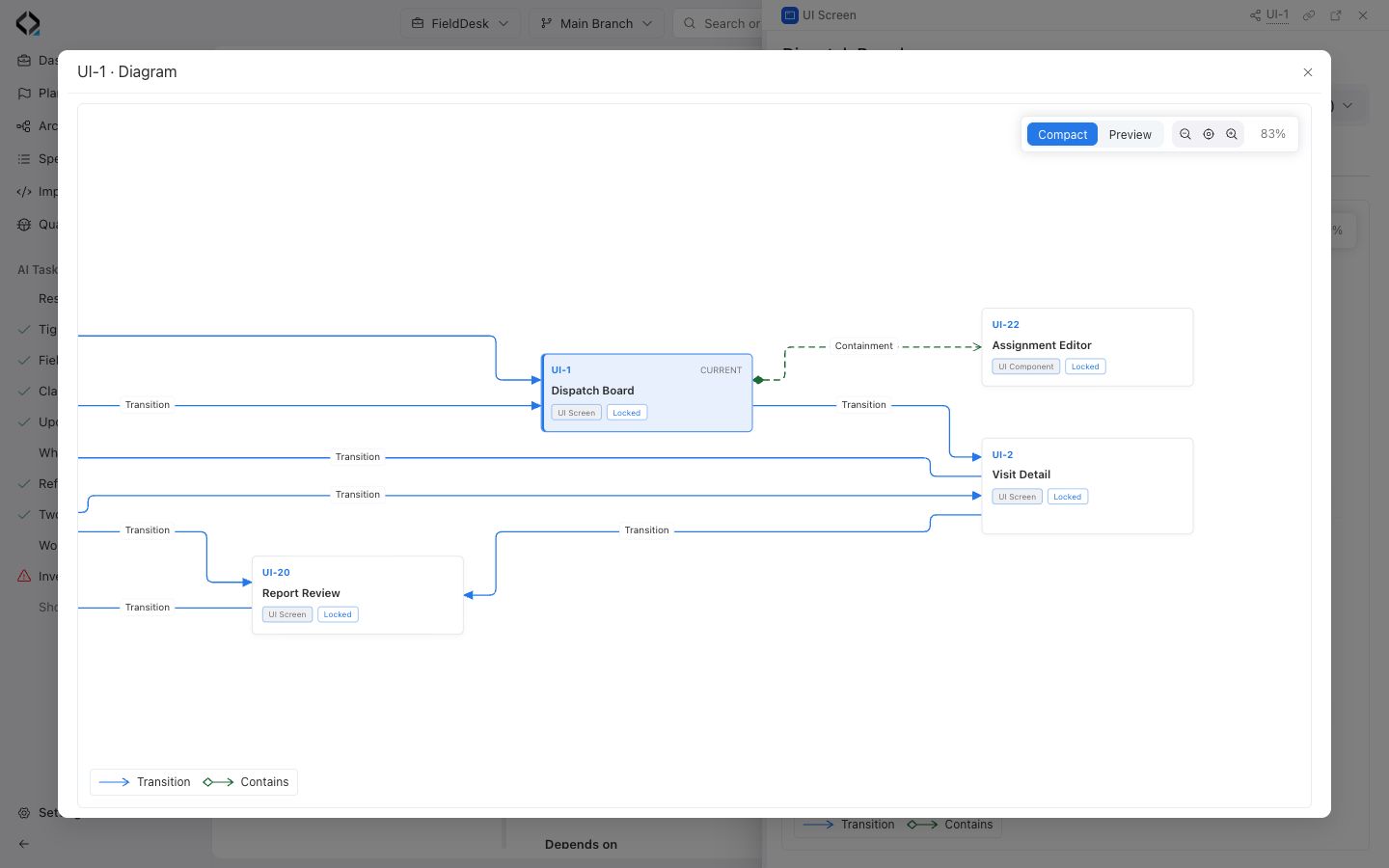
Connect the screen to its behavior
Open the requirement for this behavior and link the interface from Specifications → + → User Interfaces. Open the linked interface and check that the description and wireframe agree.